

Lost on Substack?
Which “Homepage” do you need? In which “Settings” will you find what you’re looking for?

If you’d like more support beyond this post:
Upcoming workshops, coaching options, and free Q&A sessions are listed at the bottom.
Feeling a Little Lost?
In many ways Substack is an amazing platform with many different aspects that support our creative endeavours. Whether you do writing, audio, video, community, or some blend of any or all of these, there are features that will help you publish and share your work.
All of this support naturally comes with some level of complexity, and it doesn’t help that Substack uses the same terms for several different items. Today, let’s talk about homepages and settings.

Homepages
There are three “homepages” on Substack. Not to be confusing or anything, right?
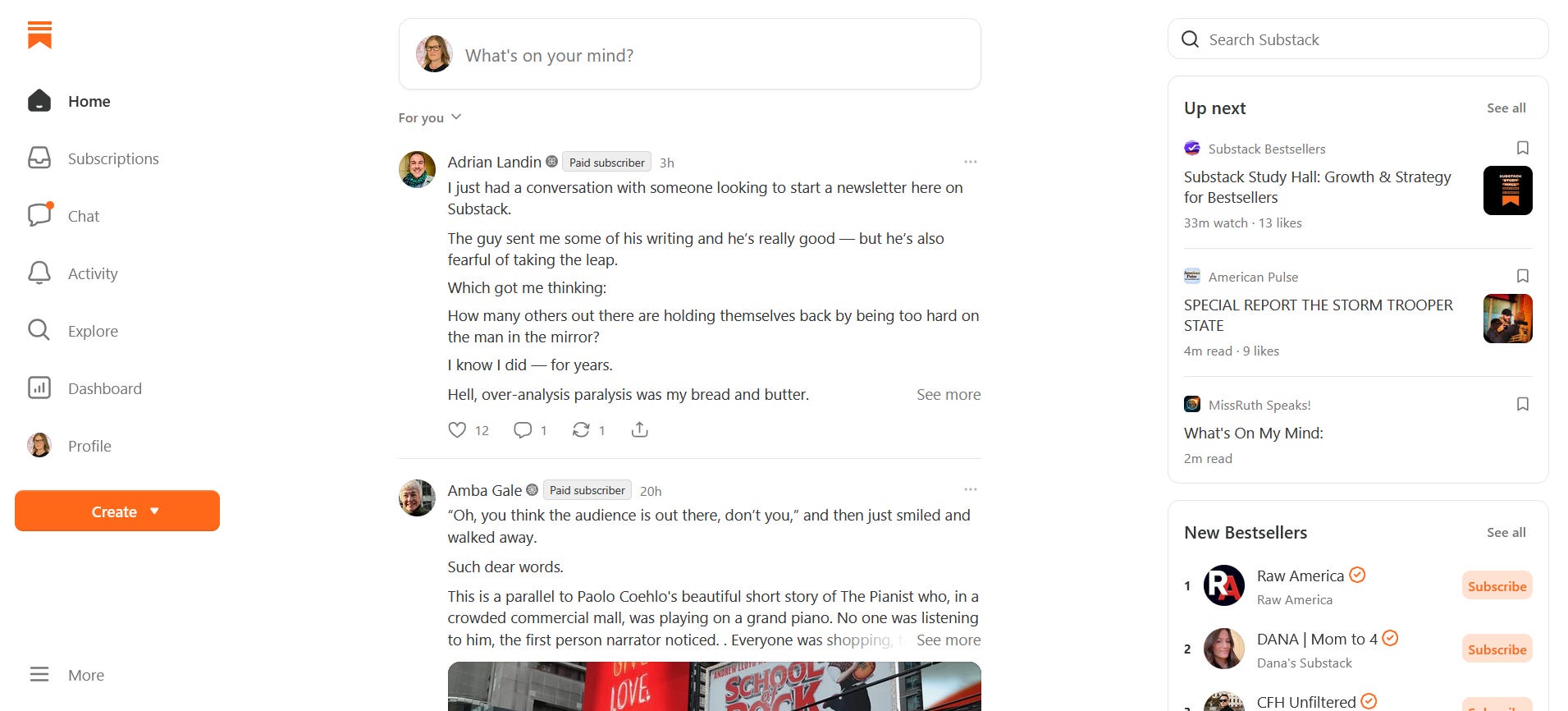
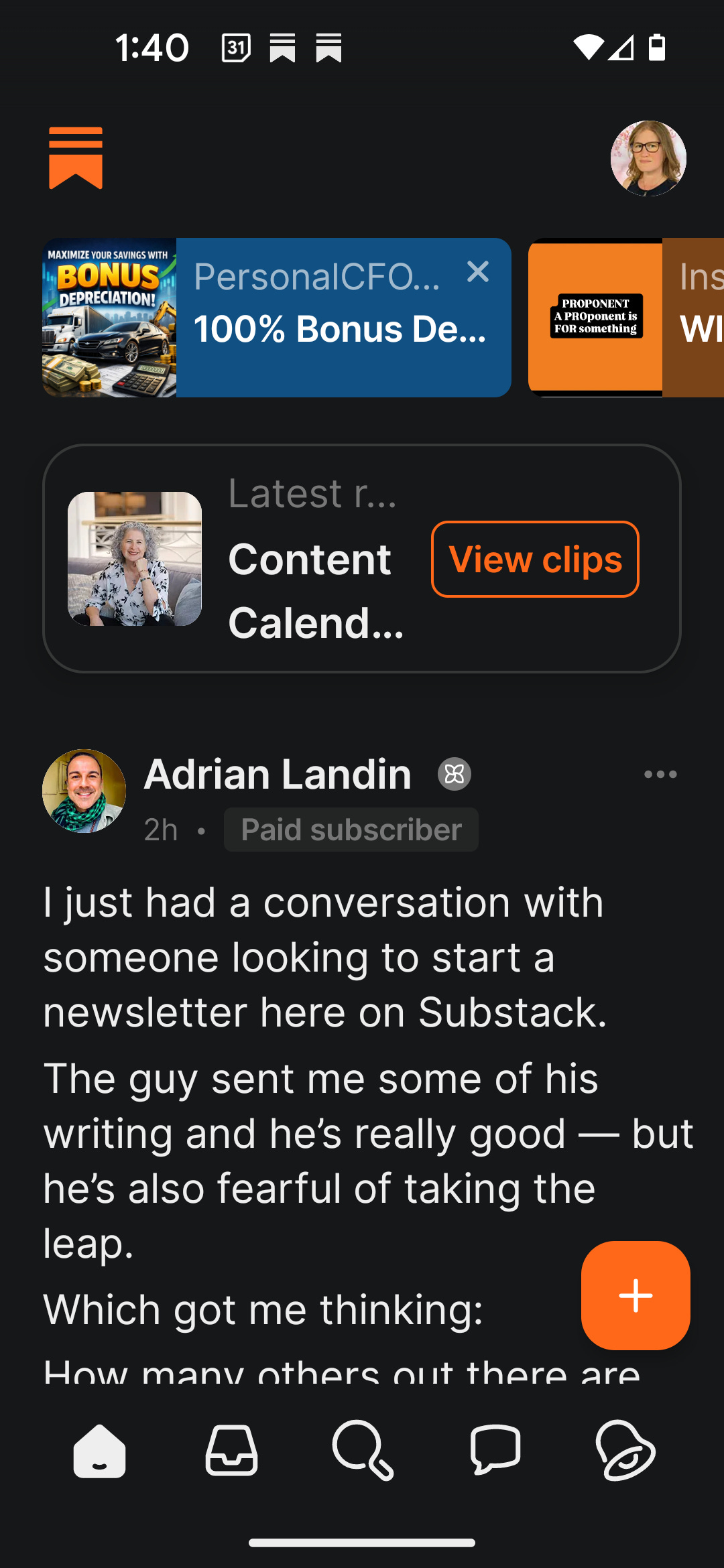
First there is the Substack homepage. This is where you’ll find the Notes feed, and be able to scroll through, looking for new content to read, like, and comment on. This is where you (as a reader) can find and get to know other people’s Substacks through their notes and posts. On the desktop it is the substack.com page, and on the app, it is the main page that shows up when you open the app:
How to use this Homepage
Use this homepage to look at other substacker’s work. This homepage has nothing to do with you creating new content—it’s just for Notes and it may be where you find inspiration, a great connection, collaboration, or a new best friend.
Next is your dashboard homepage. This is where you start when you hit the dashboard menu item on the Substack homepage. If you have your dashboard bookmarked nicely, it maybe where you start when you click your Substack bookmark. This is not available on the app, only on the desktop and you’ll see this page a lot while you’re creating your Substack posts.
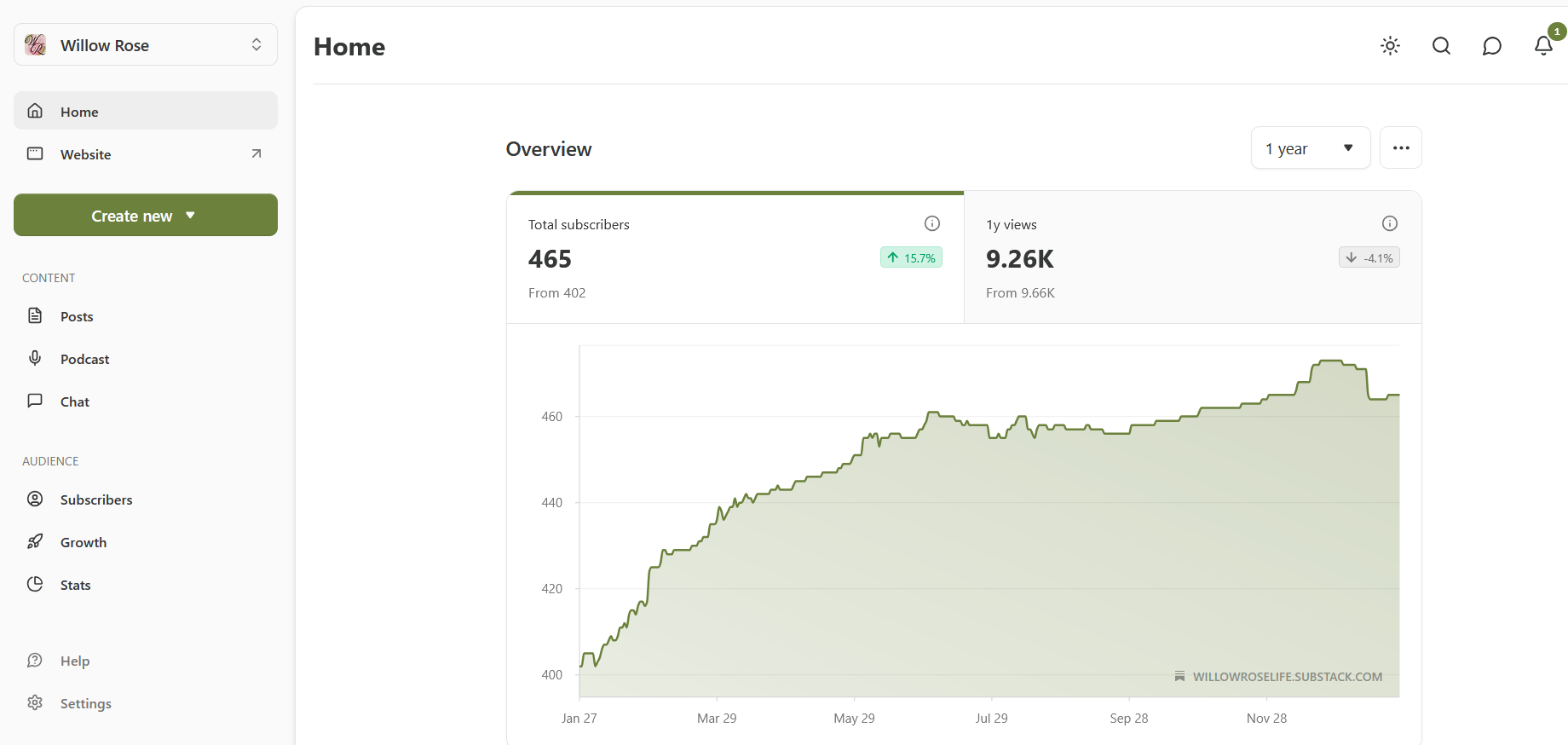
On the left you’ll find a menu that includes a link to your website (see next homepage below), a “create new” button, your posts page, your subscriber list and more. In the centre you’ll see some basic stats. First and overview for your overall publication (growth of subscribers both free and paid, and growth of income). Below this you’ll see stats for your latest post and a list of your current drafts.
The most important left side menu items are your posts and your subscribers, but there’s also a couple of other options that you’ll use often, especially when starting your Substack publication. All the settings listed here are important and useful (which is why they’re on this menu) but there’s three I want to point out:
First there is the “Branding” option, where you’ll find your colours, fonts, logo & wordmark, and “homepage layouts”.
Second there is the “help” in the bottom left corner. This is where you can access the Substack help bot. It’s incredibly useful, especially for basic setting questions, however, there are some instances where it gives outdated directions, or misunderstands your question or the Substack help docs that it pulls from, and it gives you the wrong information. So I definitely recommend using it, but if you’re developing your strategy and building your Substack, take its advice on what you can do with a grain of salt.
Third, there is the settings button in the very bottom left. This is where you need to go to fully set up your publication and we’ll revisit this below.
How to use this Homepage
This is the homepage you’ll spend most of your time on as a Substack creator, so spend time clicking on all the menu items and thoroughly exploring this homepage.
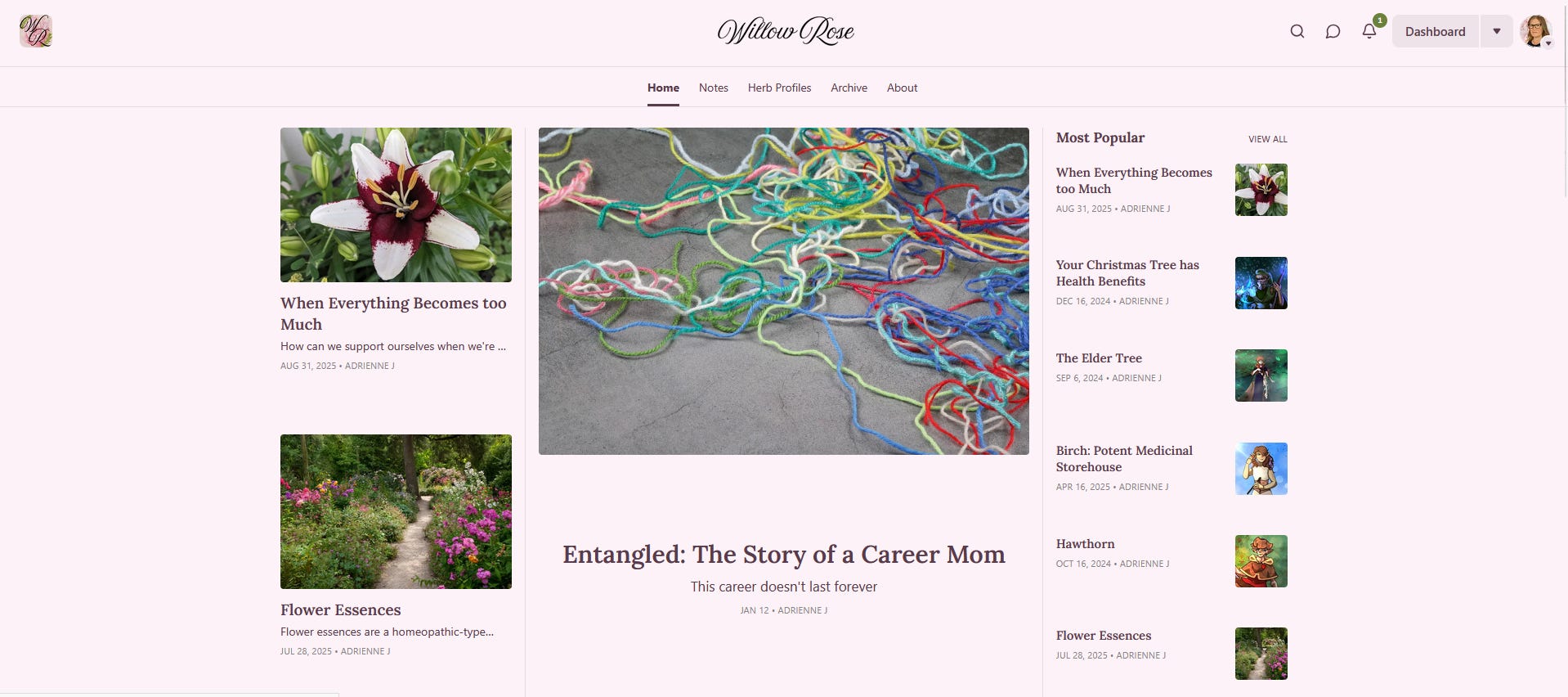
The third homepage is the homepage of your publication, the homepage that your readers visit. The homepage that future subscribers look at before they decide to subscribe to you. This is also where all your posts live, and it’s the homepage that you’re setting up when you click on “homepage layouts” in the branding section.
How to Use this Homepage
This homepage populates automatically, according to the settings you’ve chosen, and the best way to get it to look amazing, is to consistently create beautiful posts. (the images you choose for each post are important here).

Settings
There are three areas of your substack that are called “settings” and each one is unique and important. Substack seems to enjoy doing things in threes!
Profile Settings
This is where you’ll find the settings related to your experience as a reader on Substack. Your notification settings are here, your subscriptions to other people and whether you’re free or paid—and the ability to change that—live here. Your content preferences, privacy', and security live here and you can also access your profile to edit it from here.
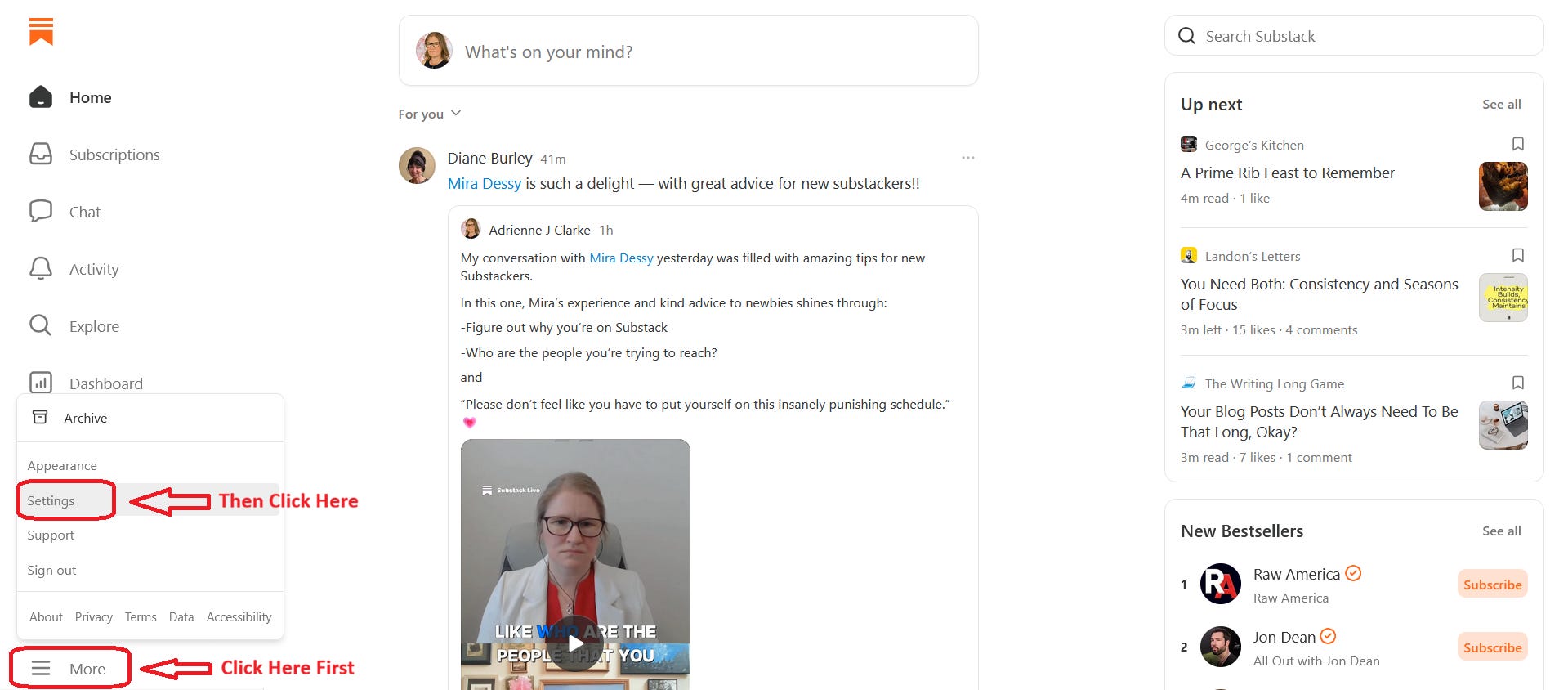
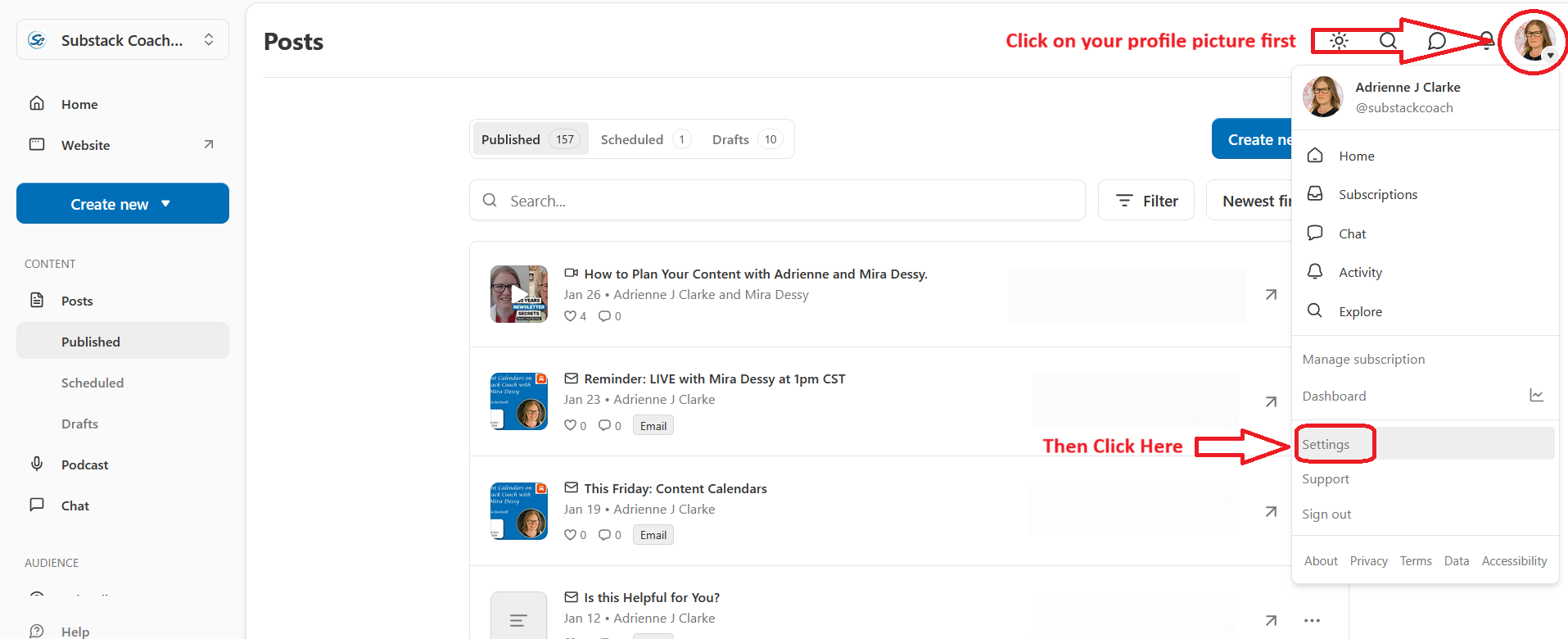
Publication Settings
This is where you’ll spend the majority of your time as you set up your substack. Once your substack is ready to go, you may revisit this area from time to time, but you won’t need to be here often. This is where you’ll find all the important settings related to your publication, such as payments, your about page, your welcome emails and more. Much, much, more!
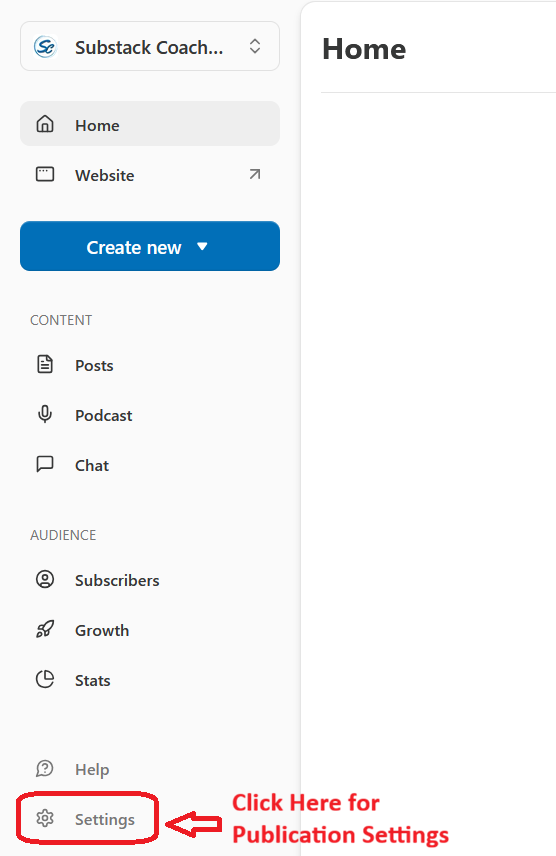
Use the left hand menu to easily navigate between the different parts of the Settings page and find what you’re looking for. You also still have access to the help bot in the bottom left corner if you need help finding a specific setting.
Post Settings
This is an important and often overlooked part of writing your posts. It is a small “settings” button in the bottom right corner of your post draft.
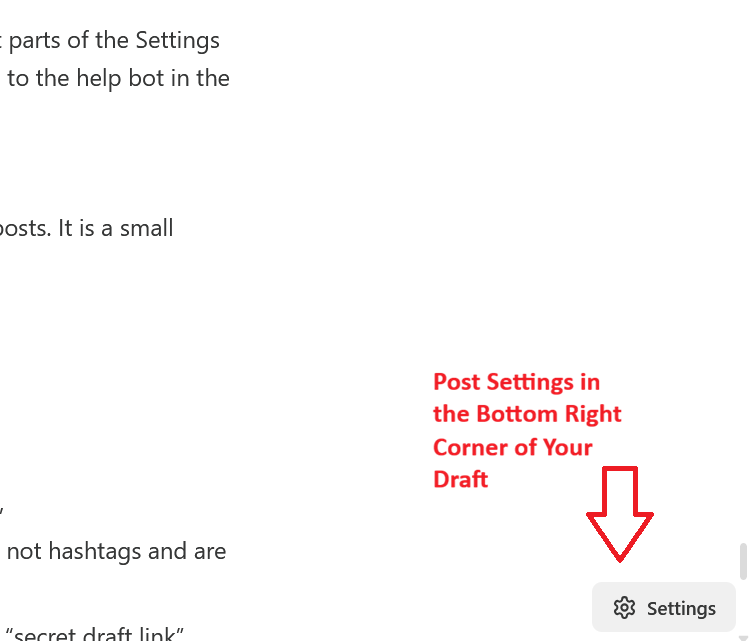
In it you’ll find:
Who this post goes to (everyone, or paid),
What section the post goes in (if you have a section set up),
What tags you want to add (note that Tags on Substack are not hashtags and are not searchable)
The ability to send yourself a test email of this, or to send a “secret draft link” which is a preview of how your post looks on Substack (as opposed to in email)
The Social Preview section - this is a preview of how your post looks on Substack, and on any social media platforms you share it to.
The SEO Settings: This is how your post will appear on google search results, because yes, substack posts do rank on google search. The title, short description and post URL are all important settings to check.

I hope this helps to clear up some of the repetitive terms the Substack interface uses to refer to the same thing, and maybe you’ll feel a little less lost.
Workshops & Support Options
One-to-One Coaching
If you’d like personalized help launching or optimizing your Substack, I offer a small number of coaching spots each month.
→ Send me a DM or Book a discovery call
Live Workshops
(Accessible to paid subscribers; free subscribers can purchase access)
Notes Newbie Workshop (February 13th at 2pm CST): Intro to using Substack Notes with confidence
→ Learn moreNext Level Notes Workshop (Coming in March): For people who understand the basics and want to go deeper
→ Learn more
Free Q&A Drop-In Chat
A live, open session for questions about Substack setup, Notes, or navigation. (February 19 at 1pm CST)
→ Join the next session